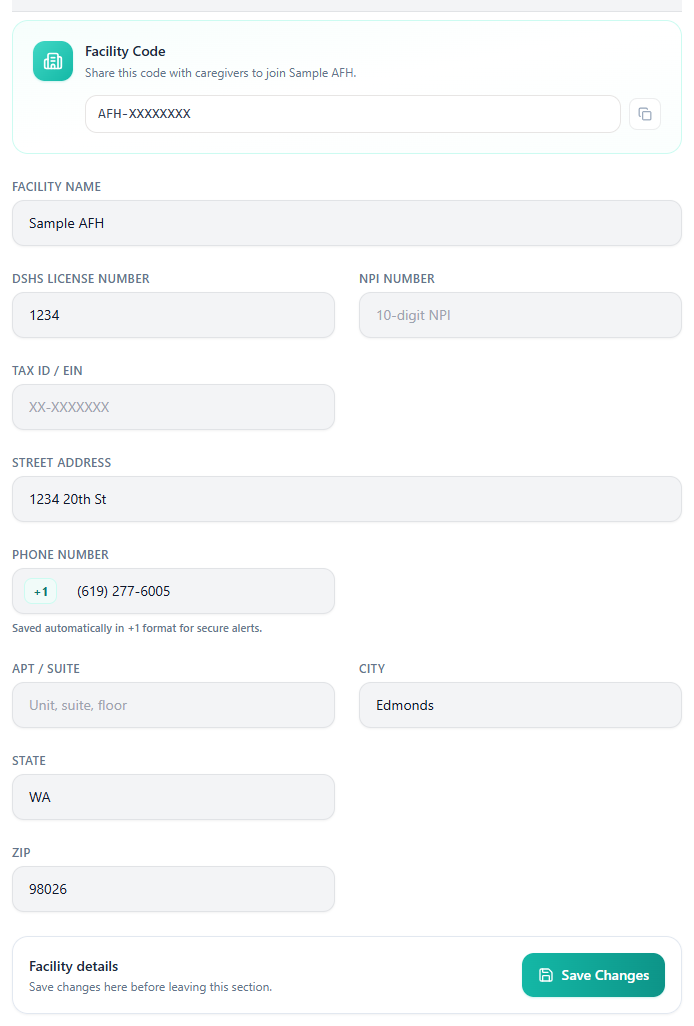
Name, license, address, and phone, all in one place.
Set up your home
Start with the basics. This is what shows up everywhere else.
- 1Open Admin Settings, then the Facility tab. Add your name, license number, address, and phone.
- 2This is what appears on every export you hand someone, so get it right once and it is done.
Good to know
The Facility Code on this screen is how caregivers can request to join. Keep it to people you have hired.
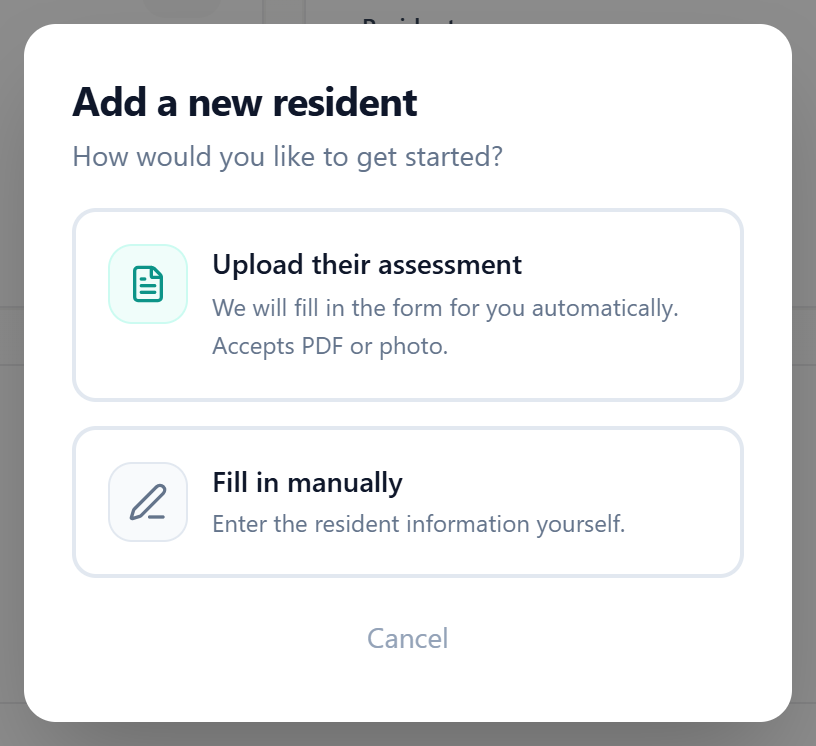
Upload their assessment, or fill it in yourself.
Add your first resident
Skip the typing. A photo does most of the work.
- 1Photograph or upload the assessment and VestaLog fills the form in about fifteen seconds. You review every field before anything saves.
- 2Or type it in yourself. Only first name, last name, and date of birth are required to start.
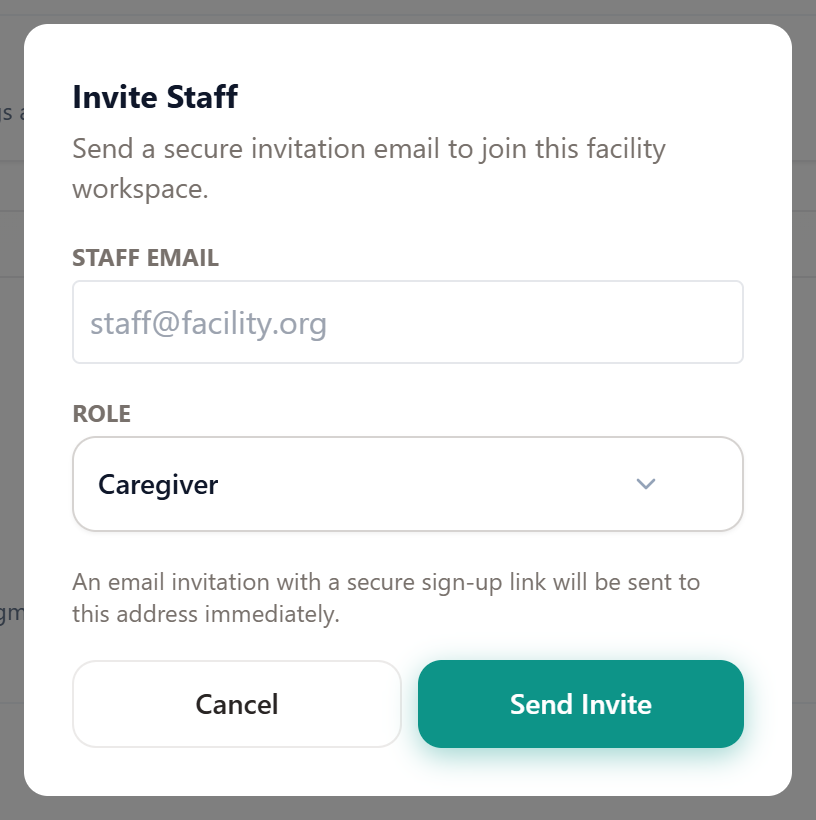
The email invite goes out right away.
Invite your care team
Get your staff into VestaLog in under a minute.
- 1Open Admin Settings, Staff, then Invite Staff. Enter the caregiver's email and role.
- 2They get a secure link, set a password, and can start working right away.
Good to know
There is also a Facility Code caregivers can use to request access on their own. Those requests wait for your approval in the Staff tab.
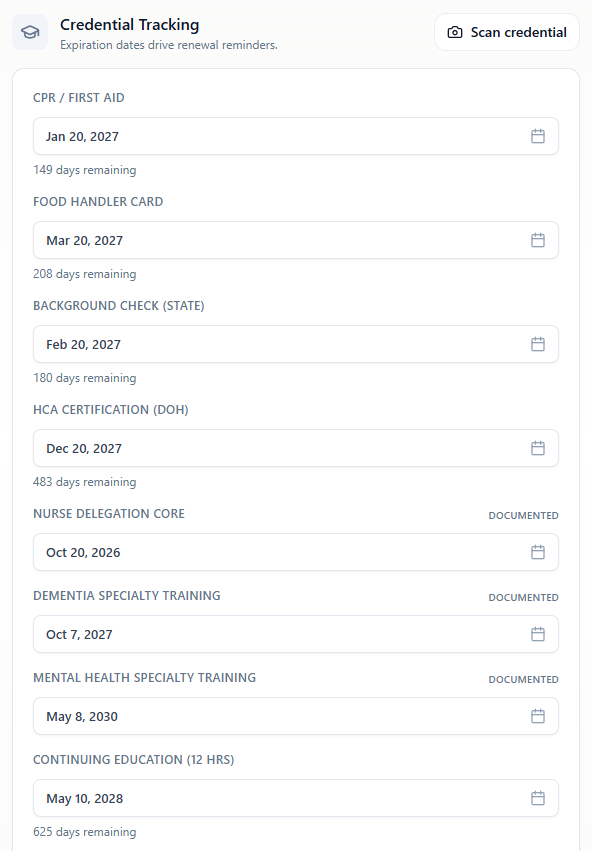
Photograph it once. VestaLog tracks the date from here.
Scan a staff credential
Turn a photo into a tracked expiration date.
- 1Open a staff member's binder and tap Scan credential. Photograph the card.
- 2The matching field fills in with the expiration date. You confirm by saving.
Good to know
VestaLog emails you every week about anything expired or expiring within sixty days.
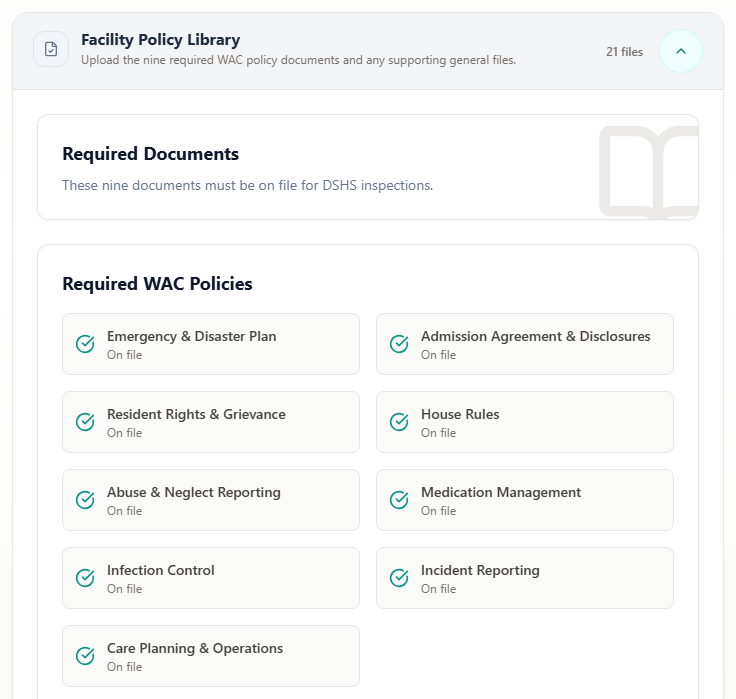
Nine categories, each with its own upload.
Organize your policies
Nine categories. One place for all of them.
- 1Open Admin Settings, Policies. Nine required WAC categories are listed for you.
- 2Upload your signed PDF into each one.
Good to know
VestaLog does not write these policies for you. It organizes the ones you already have so you can find them fast.
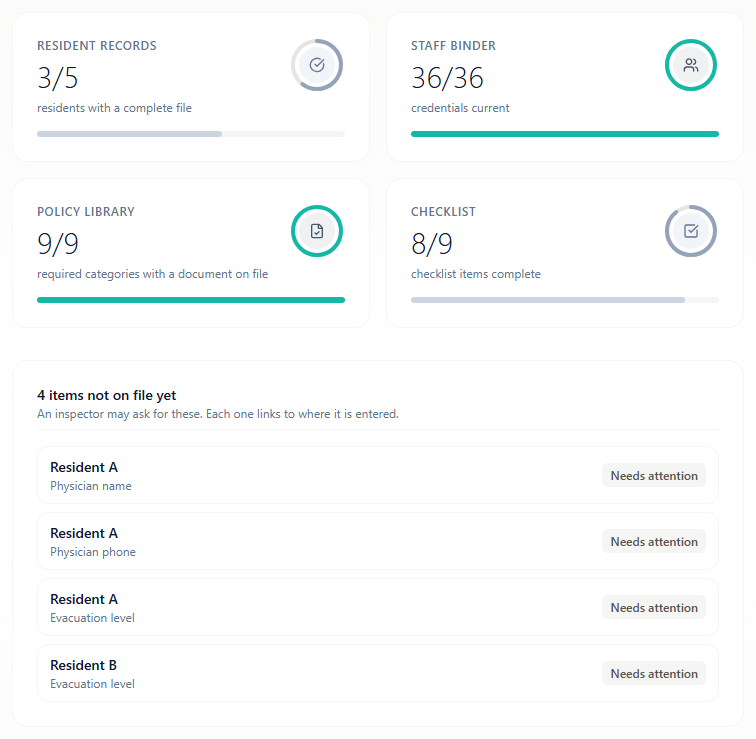
Everything missing, named, with a link to fix it.
See what an inspector would ask for
Know what is missing before anyone asks.
- 1Inspection Mode shows how many records are on file in each area, and lists by name what is missing.
- 2Tap any item to go straight to where it is entered. Print Summary and Export Pack produce a dated packet.
Good to know
If someone arrives tomorrow morning, you already know what you can hand them.
That is everything.
Come back to this guide anytime from Help & Tutorials.